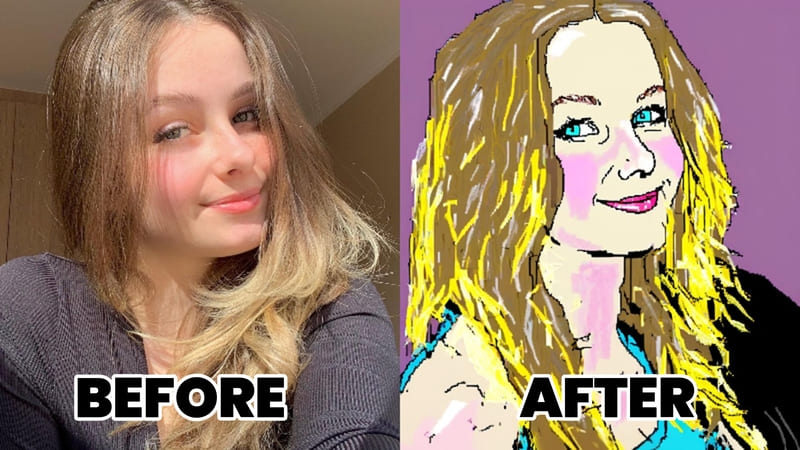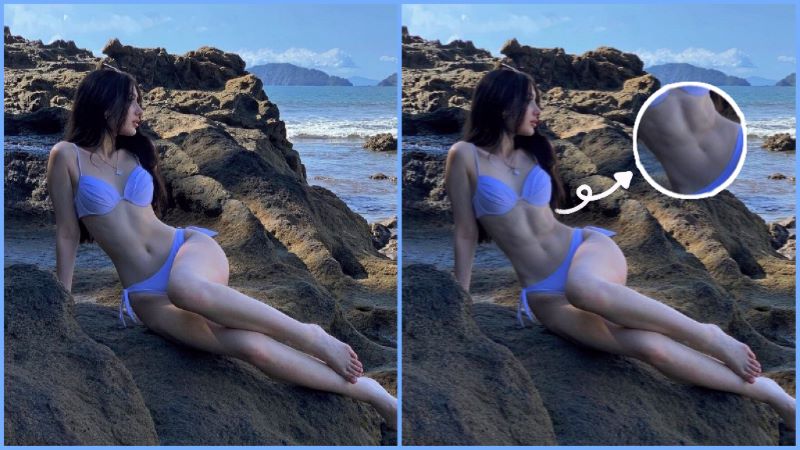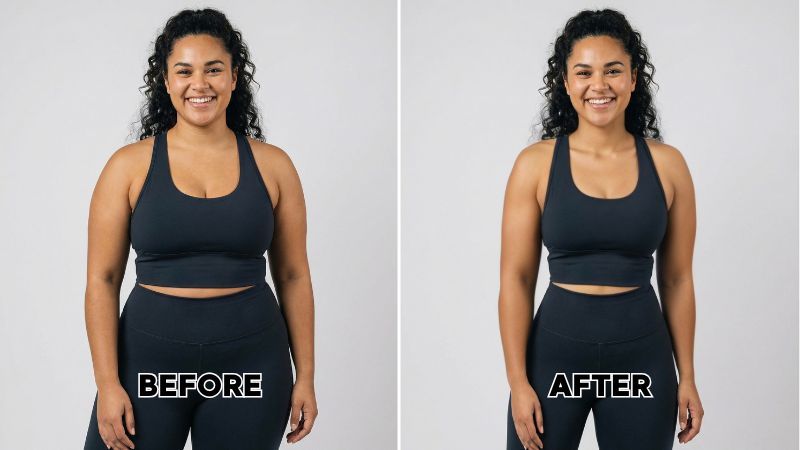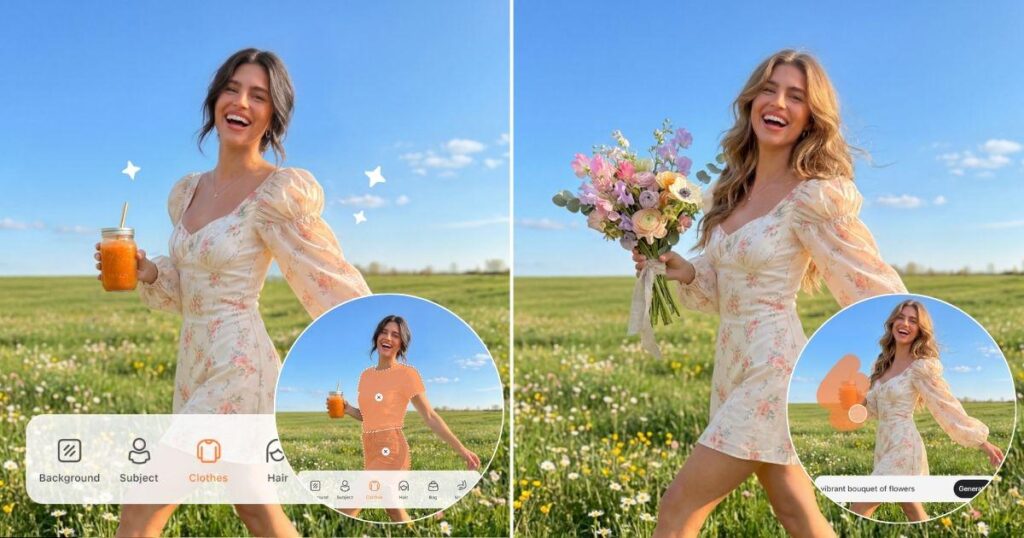
Have you ever looked at a photo and thought, “I wish I could just change that”?
Maybe you love the photo, but the outfit does not fit the mood. Maybe the background feels distracting, an object is in the wrong place, or you want to add something more creative to the scene. In the past, these edits often required masking, cutting, layering, and careful manual adjustments.
With Airbrush AI Replace, users can edit photos with simple text prompts. Instead of manually selecting and adjusting every detail, users can describe what they want to change, and AI Replace helps generate a new version of the image. It can be used to replace objects in photos, change clothes, update backgrounds, add accessories, adjust hairstyles, or create more imaginative visual edits.
Behind this experience is Airbrush’s StructGen technology, a research-driven approach designed to help AI understand images and references more accurately. The research paper, “StructGen: Disambiguating Multi-Reference Image Generation via Structured Context Modeling,” has been accepted at ACM MM 2026, one of the leading international conferences in multimedia research. The technology is now being applied to improve the AI Replace experience in Airbrush.
What Is AI Replace?
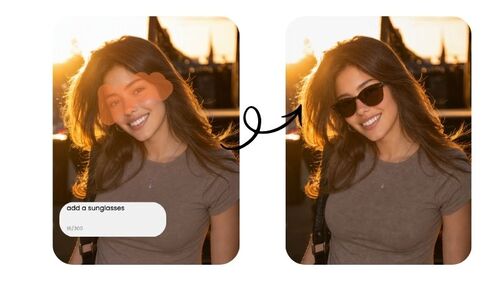
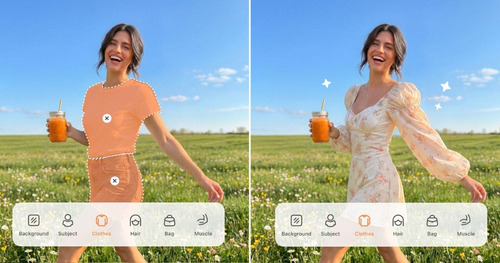
AI Replace is an AI photo editing tool that lets users change or add elements in an image using text prompts. Users can describe the edit they want, such as changing a dress into a black blazer, replacing a plain wall with a city street, adding sunglasses, or removing and replacing an unwanted object.

AI Replace is useful for many everyday and creative scenarios, including:
- Changing clothes in a photo
- Replacing or adding objects
- Changing the background of an image
- Trying new hairstyles or accessories
- Creating social media visuals
- Exploring fashion, lifestyle, or product content ideas
Users can try AI Replace in both the Airbrush mobile app and the Airbrush Web Editor, making it easier to create AI-powered edits from different devices.
Why Accurate AI Replace Is Difficult
AI image editing may look simple from the outside, but accurate results are complex to generate. When a photo includes multiple people, outfits, objects, and backgrounds, the AI model needs to understand which part should change and which parts should stay the same.
Without enough context, the result may not match the request. An outfit may appear on the wrong person, an object may be placed incorrectly, a face may change unexpectedly, or the background may shift even when the user only wanted to edit one detail.
This is the challenge Airbrush’s research team set out to improve with StructGen.
How StructGen Helps AI Replace Work More Accurately
StructGen helps AI better understand how different visual references and instructions relate to one another. Instead of treating every reference as a separate image, StructGen helps the model understand the role of each element, such as the person, clothing, object, background, or style being referenced.
This structured understanding makes it easier for the AI to follow editing instructions more accurately. For example, when a user wants to change clothing while keeping the person’s face and background consistent, the model needs to understand what belongs to the original subject and what should be replaced.
Airbrush also developed training and evaluation methods based on more realistic editing scenarios. These include different poses, clothing styles, environments, materials, textures, and interactions. By learning from more varied real-world examples, the technology helps AI Replace respond more reliably to different editing requests.
For users, this means AI Replace can feel more controllable, natural, and useful for everyday photo editing.
How to Use AI Replace in the Airbrush App
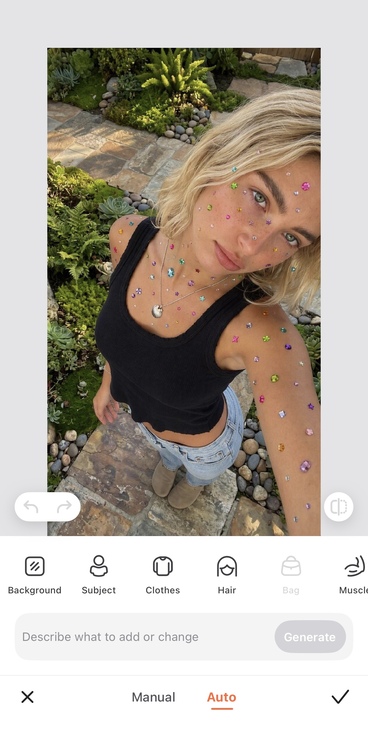
Using AI Replace in the Airbrush app is simple:
- Open the Airbrush app and choose the photo you want to edit.
- Select AI Replace.
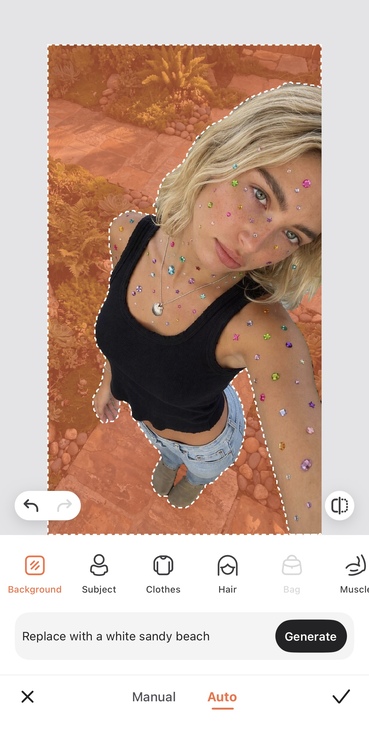
- Enter a clear text prompt describing what you want to change.
- Generate the result and adjust your prompt if needed.
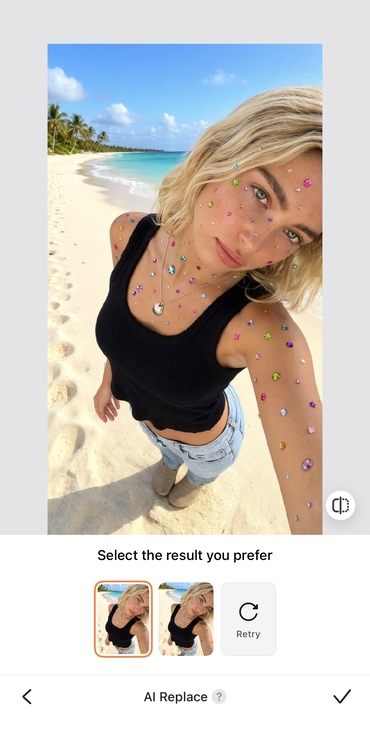
For example, you can try prompts such as:
- “Change the outfit to a white summer dress.”
- “Replace the background with a beach at sunset.”
- “Add a pair of black sunglasses.”
- “Change the hairstyle to long wavy hair.”
- “Replace the chair with a modern sofa.”
The key is to describe the specific part of the photo you want to change and what you want instead. You can experiment with adding objects, changing hairstyles and accessories, or creating an entirely different scene.
There’s no need to learn complicated editing techniques first. Pick a photo, describe your idea, and experiment with different prompts to see what you can create.
How to Use AI Replace in Airbrush Web Editor
AI Replace is also available through the Airbrush Web Editor, giving users another way to edit images online without downloading additional software.
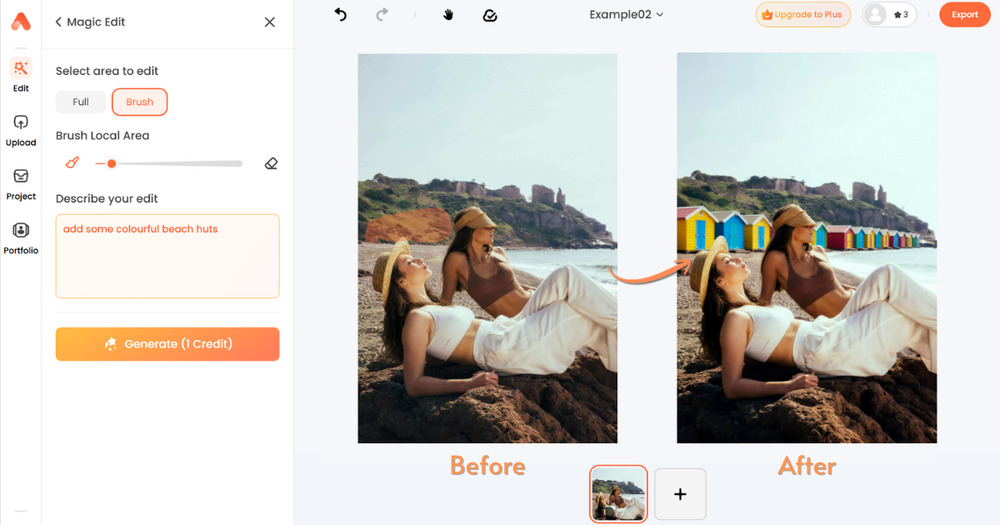
To use AI Replace on the web:
- Open the Airbrush Web Editor.
- Upload the image you want to edit.
- Choose AI Replace.
- Type a prompt describing the object, outfit, background, or detail you want to change.
- Generate and download the edited image.
The web version is especially useful for users who prefer editing on a larger screen, working with content for social media, or preparing visuals for blogs, product pages, creative projects, and presentations.
Tips for Better AI Replace Prompts
You do not need to be an expert at prompting to use AI Replace. A few simple details can help the AI understand your request more clearly.
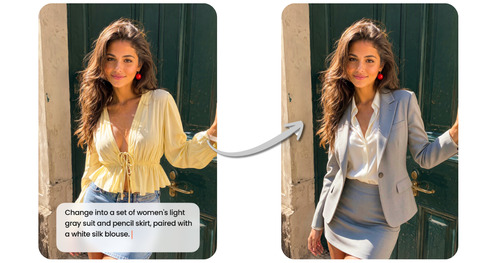
Be specific
Instead of writing:
“Change the clothes.”
Try:
“Change the outfit to a black blazer and white shirt.”
Focus on one main change at a time
If you want to change the outfit, background, and accessories, try editing step by step. This can help the AI focus on each request more accurately.
Add useful visual details
Details such as color, material, style, setting, or mood can help guide the result.
For example:
“Replace the background with a modern office with soft natural lighting.”
Keep important parts clear
If you want the face, pose, or background to stay the same, mention that in the prompt.
For example:
“Change the outfit to a red evening dress while keeping the face and background the same.”
Frequently Asked Questions
What is AI Replace?
Airbrush AI Replace is an AI photo editing tool that uses text prompts to replace or add elements in a photo. You describe the change you want, such as a different outfit, object, or background, and AI generates an edited version.
What can I use AI Replace for?
Use Airbrush AI Replace to explore outfit ideas, update photo backgrounds, replace distracting objects, or try different hairstyles and accessories. It helps you create alternative looks for portraits, social media photos, and creative projects without reshooting the image.
How can I change clothes in a photo with AI?
Use Airbrush AI Replace to describe the outfit you want in the photo. For example: “Replace the current outfit with a black blazer and a white cotton shirt.” Include the clothing type, color, and material, then review the generated result for fit and details.
Can AI Replace change the background?
Yes. Airbrush AI Replace can generate a different background from a text description. For example, use “Replace the background with a beach at sunset” for a vacation-inspired photo or “Replace the background with a neutral photography studio” for a portrait. Review the lighting and subject edges before using the result.
Can I replace an object in a photo?
Yes. Use Airbrush AI Replace to identify the object and describe its replacement. For example: “Replace the coffee cup on the table with a small bouquet of flowers.” Specifying the object’s location, size, and appearance helps make the request clearer.
How do I write a good AI Replace prompt?
A useful Airbrush AI Replace prompt names what should change and describes what should replace it. Add relevant details such as color, material, size, or setting. For example: “Replace the red handbag with a small black leather handbag.” Start with one clear change, review the result, and refine the prompt if needed.