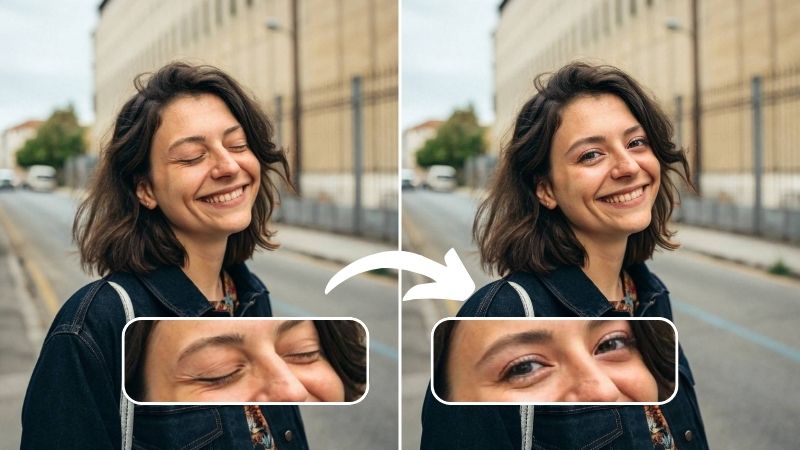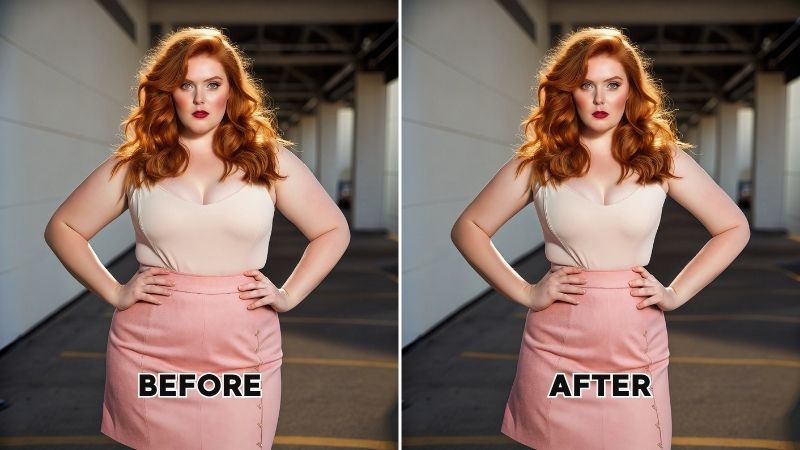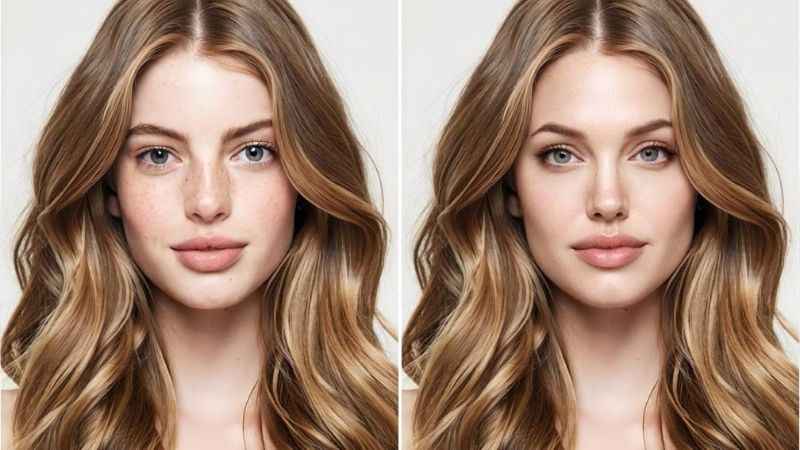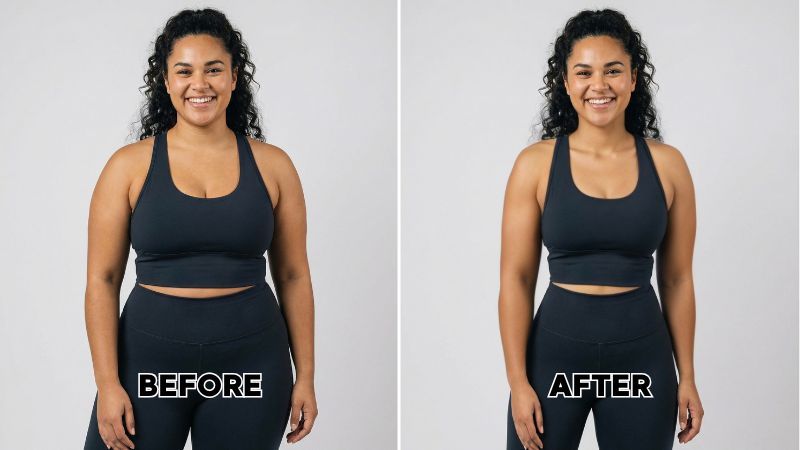
We’ve all had those moments where we look at a picture and think, “Wait, am I actually this fat or is my mind messing with me?” The worst part is when you ask someone else for a second opinion, and they end up feeding the doubt even more. And if it’s not a one-off thing that you somehow look wider in certain areas even though you know you don’t look like that in real life, then yes, something can definitely be done about it. Bottom line, stop asking yourself, “Why do I look fat in pictures?”, because today, we’re going to fix that.


Why Do I Look Fat in Pictures?
If you look in the mirror and see yourself one way, but every time you take a picture you end up looking bigger, it can be a weirdly unsettling experience, and the question naturally pops up “Why do I look fat in pictures?” The good news is, it’s more common than you’d think. There are quite a few reasons this happens, and most of the time, you’re unknowingly doing all of them at once. So when the photo shows up, and you look wider, it feels confusing. Take a look at these factors, and things might finally start making sense.
1. Camera distortion
Smartphone lenses, especially wide-angle ones, tend to stretch anything near the edges, which is one big reason people ask “Why do I look fat in pictures?” When the phone is held too close, your face and body naturally appear wider than they actually are.
2. Lighting and shadows
Bad lighting creates shadows in all the wrong places. Overhead lighting can exaggerate the appearance of cheeks, neck, arms, and even stomach lines, making you look heavier on camera than in real life.
3. Pose and posture
If you’re slouching and leaning slightly back, that will instantly broaden your frame and also give you your answer to ”Why do I look so bad in pictures?”, A little posture fix can go a long way.
4. Face shape and symmetry
If you have an asymmetric face, the camera can highlight it even further. You can slightly tilt your face to make your face look fuller on one side.
5. Body position and angles
Standing straight, turning slightly to the side, or creating space between your arms and torso can change everything. Wrong angles compress your shape and make you look wider.
Know Your Face Shape — Your Photo Foundation
Have you noticed how certain celebrities always pose the same way? It’s not a coincidence. They have entire teams guiding them on how to look their best on camera, and one of the biggest things they get right is understanding their face shape. Knowing this matters more than people realize, because that’s how you end up questioning, “Why do I look fat in pictures?” even though you don’t look that way in the mirror.
Every face shape is unique, which means the angles, lighting, and hairstyles that flatter one person might not work for another. If you want to look good in photos, the first step is figuring out your face shape. You can either learn it the long, tiring way through endless research, or just use a reliable tool like the Face Shape Detector by Airbrush to get it in seconds.
How to use the Face Shape Detector
1. Open the Face Shape Detector tool by Airbrush in your browser.
2. Click “Upload Image” and choose a photo where your face is directly facing the camera.
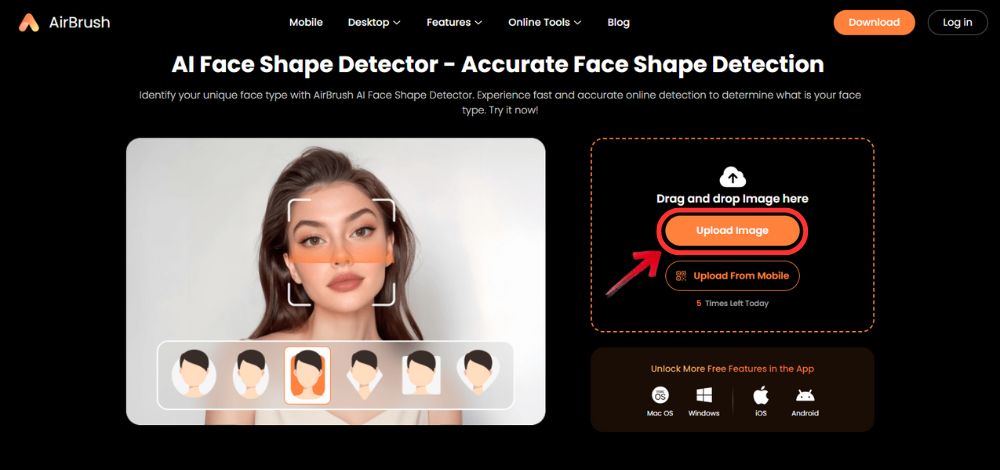
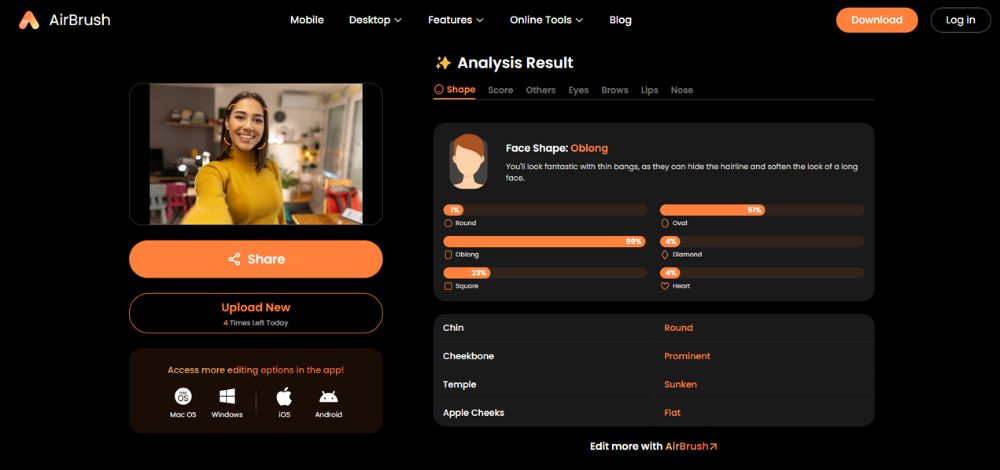
3. Once it finishes processing, Airbrush will generate a detailed breakdown of your face shape along with hairstyle recommendations that suit you best.
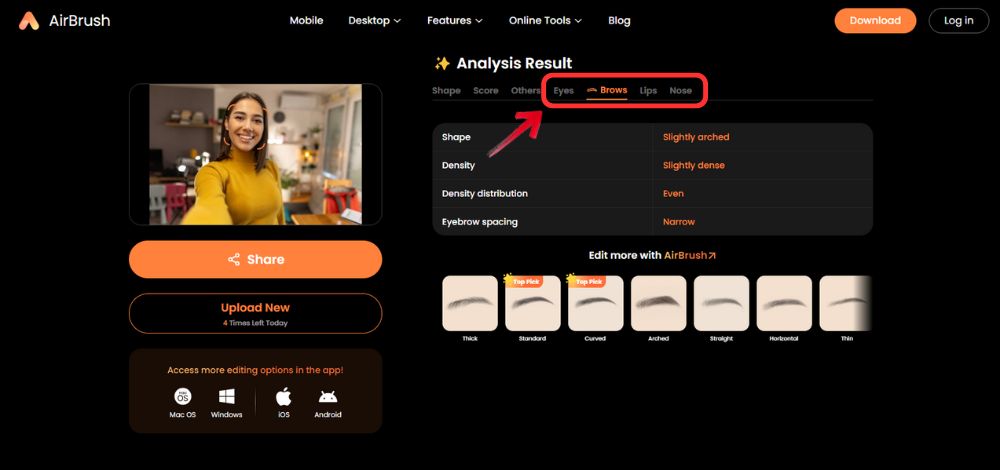
4. If you select other features such as eyes, lips, and nose, you can get makeup recommendations too.
Perfect Your Proportions
A pretty scale is an AI-powered facial analysis tool that estimates how attractive someone might appear based on visual markers. It typically reviews features like symmetry, jawline shape, eye spacing, nose length, and overall face ratios, then generates a score based on those measurements. Pretty Scale by Airbrush uses science-leaning benchmarks to break down how balanced your features look in a photo, which also helps explain common concerns like why do I look fat in pictures. This can help explain why certain angles or lighting make you look wider or give the impression of “looking fat” in pictures.
How to use Pretty Scale in photo selection and preparation
1. Open Airbrush and go to the Pretty Scale on your phone or browser.
2. Upload several photos of yourself one by one and try different angles, expressions, and lighting (front-facing, slight tilt, window light, indoor light, etc.).
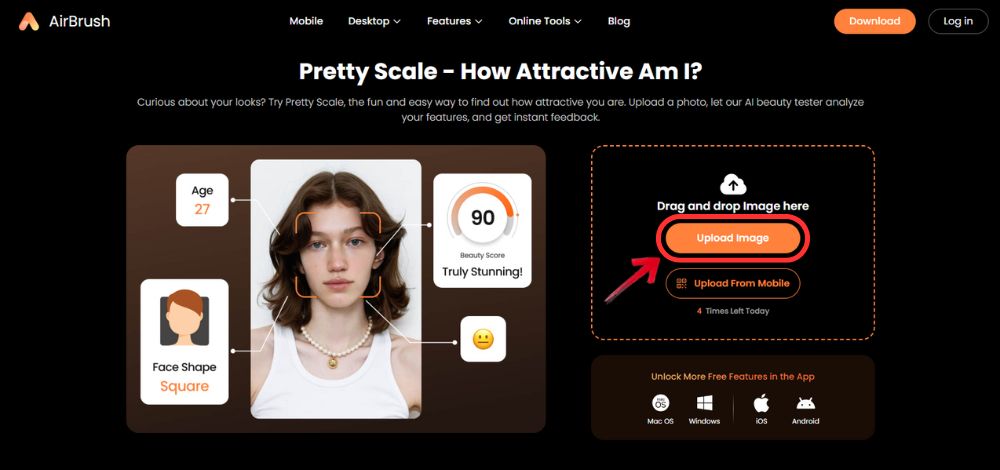
3. Let Airbrush analyze each photo. Check the Pretty Scale score and the short notes it gives for symmetry, jawline definition, or overall balance.
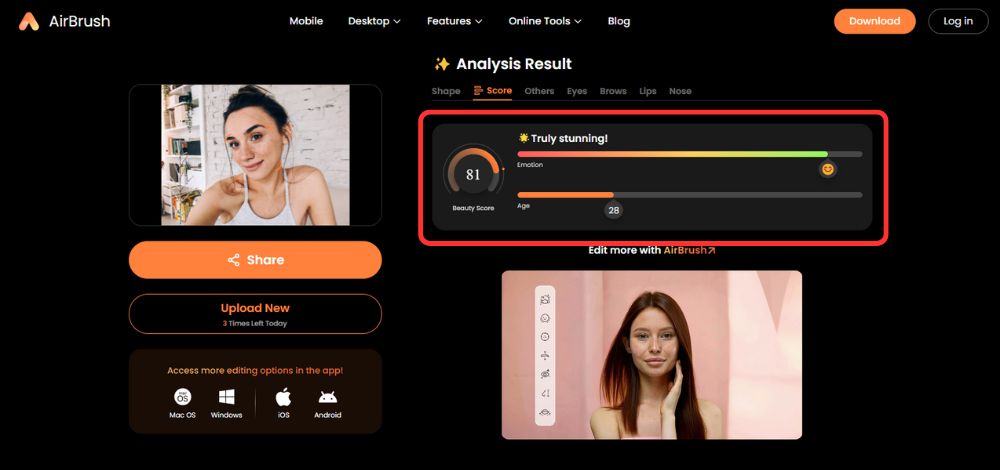
4. Compare the results to see which photos score higher and notice what’s different: angle of your face, distance from the camera, lighting direction, or posture.
5. Pick the photos with better symmetry and definition for posting (for example, where your jawline looks clearer or your face looks more balanced).
6. Use the insights for future photos. If your score improves when your face is slightly tilted or when soft side-lighting adds a gentle shadow under your jawline, repeat that setup next time you take pictures.
Why Body Editing Matters
Body editing apps help by correcting the tiny distortions a camera creates. A lens can stretch your waist, flatten your curves, or throw harsh shadows that make you look wider than you really are. This is one of the main reasons people wonder why do I look fat in pictures, even when they look completely different in real life.
And since Airbrush offers the full package, from its browser tools to the mobile app, you get everything you need to fix these distortions in one place. These are some of the tools by Airbrush that you can use to adjust your body proportions easily, and the results will always come off looking natural.
Airbrush Body Editing Tools
You no longer have to worry about why do I look so fat in pictures, because the tools from Airbrush can help you tackle those issues head-on and make your photos match how you actually look.
Airbrush Online Body Editor
Airbrush Body Editor is an online tool that lets you tone and refine your body with a single click, without any extra effort. It works surprisingly fast, and the results stay natural enough that no one can tell the image was edited.
1. Go to your browser and open Airbrush Body Editor tool.
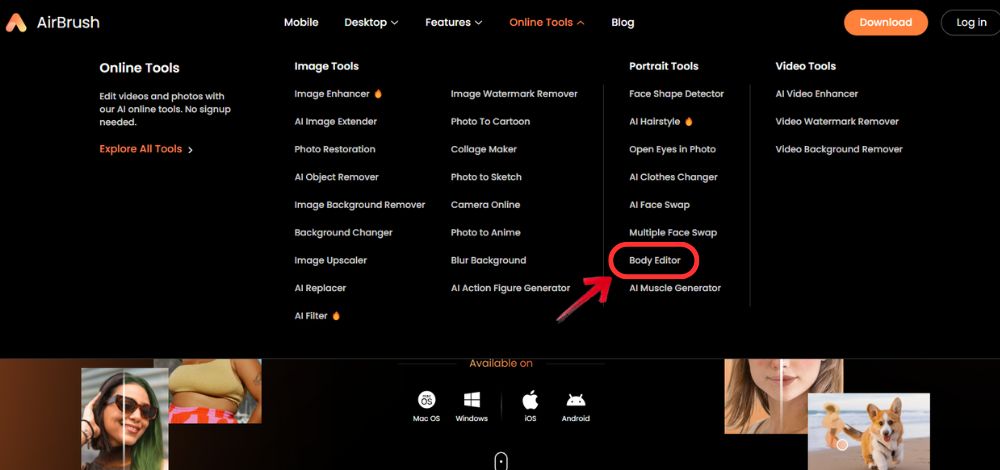
2. Click “Upload Photo” on the homepage to select an image from your device.
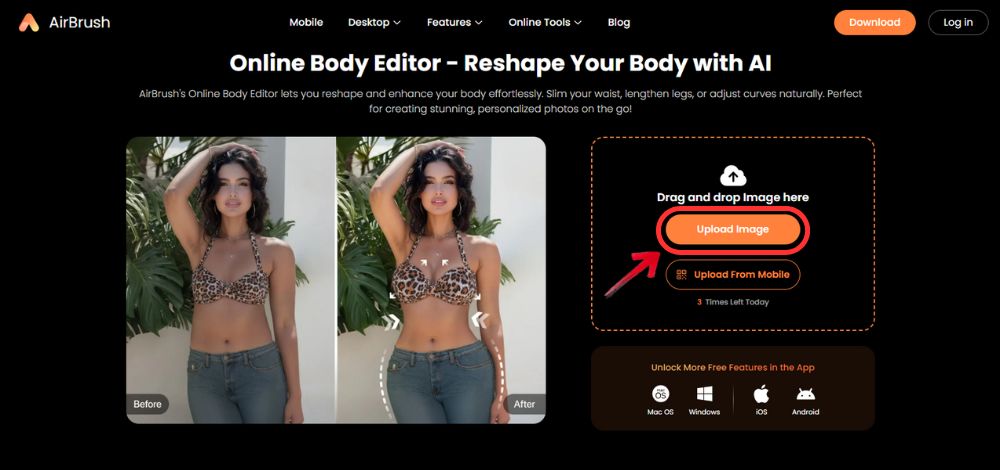
3. Once your image loads, you can choose between the options Slim, Waist, Length, Arm, Breast, Shoulders, Neck, and Head size, and choose the intensity level you want.
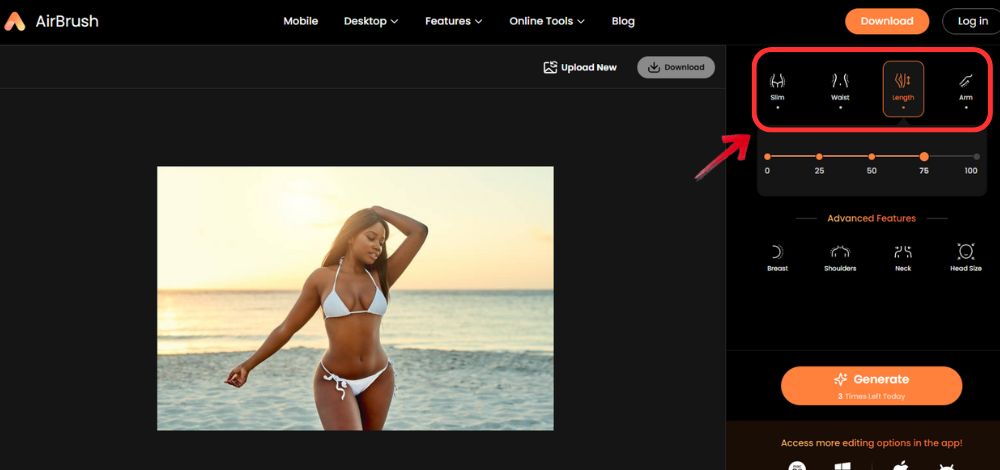
4. Hit “Generate” once you’ve finalised the edits you would like to make.
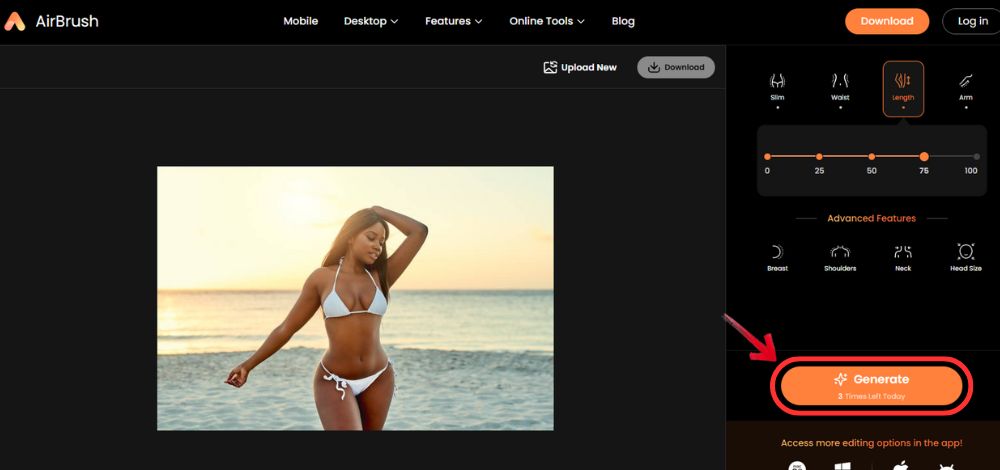
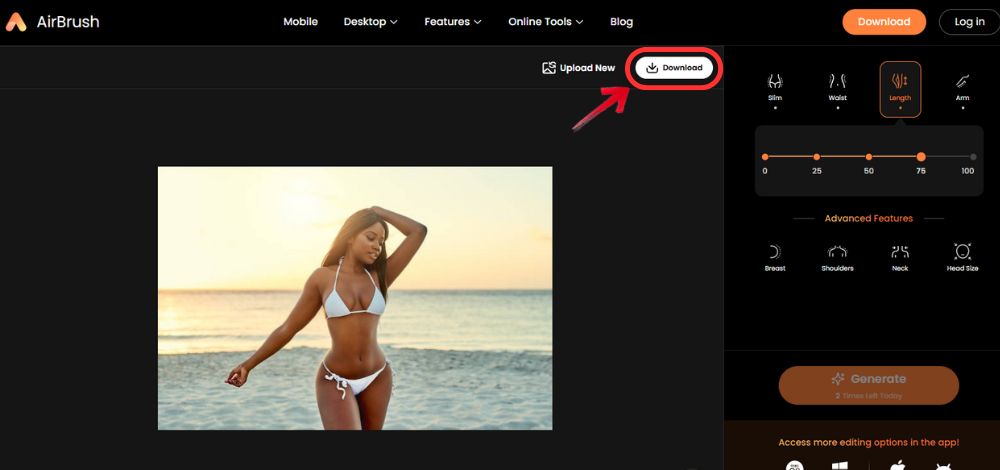
5. Once satisfied with the results, click the “Download” button at the top right of the page.
Airbrush Online AI Muscle Generator
The Muscle Generator by Airbrush literally adds realistic muscle definition to your photo. So if you’re feeling a little bloated after days of heavy eating and want to look toned in a picture, this tool fixes that instantly.
1. Go to your browser and open the Airbrush Muscle Editor tool.
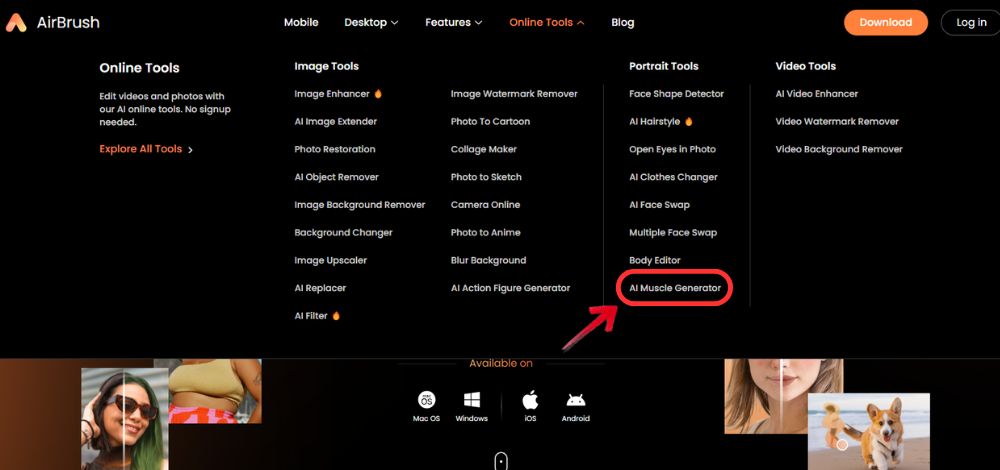
2. Click “Upload Photo” and select an image from your device.
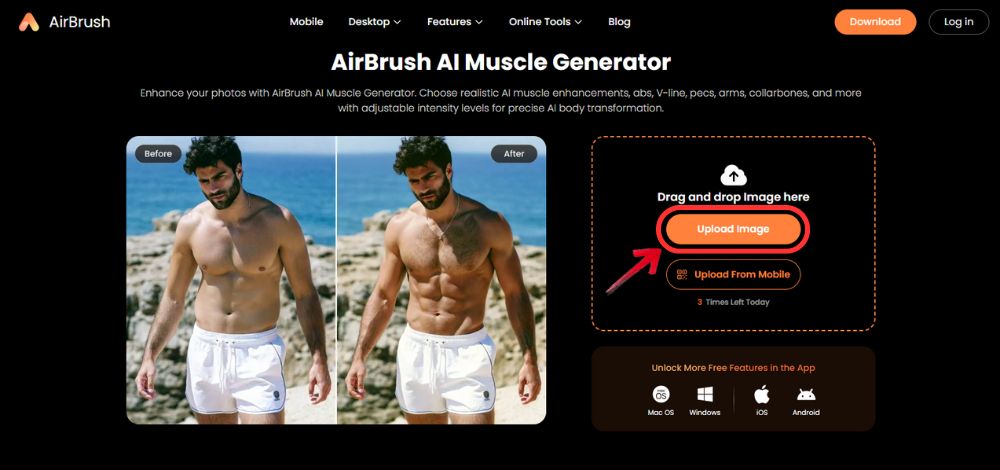
3. Once loaded, select Body and choose the muscle intensity level between None and High.
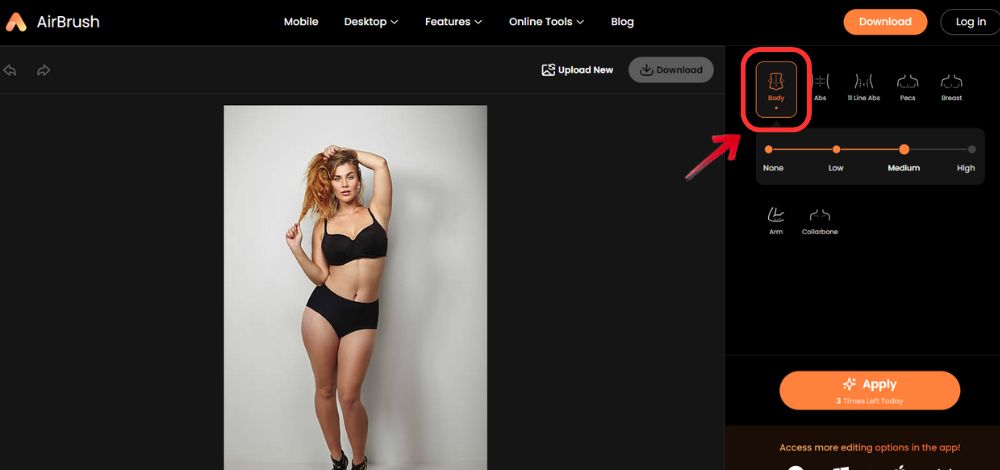
4. Hit “Apply”, and it will process the image to give your desired edit.
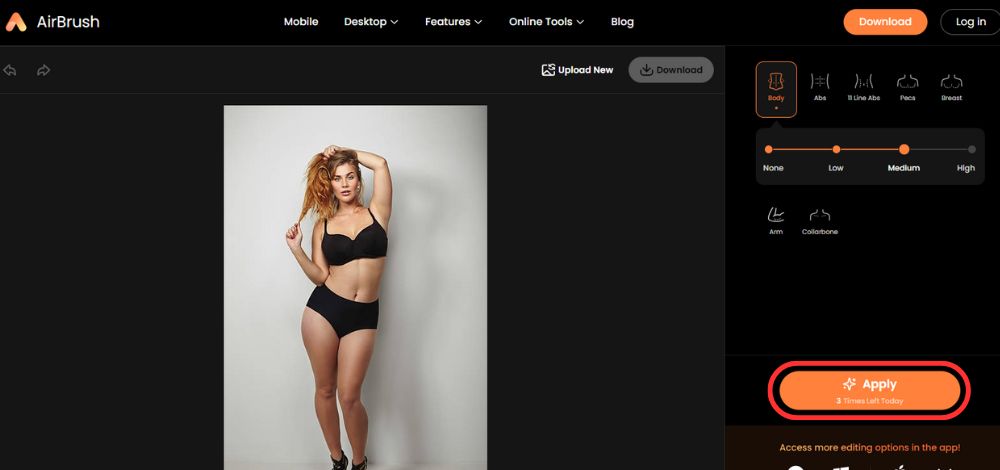
5. Select each option one by one: Abs 11 Line Abs, Pecs, Breast, Arm, and Collarbone, and then choose the degree to which you want to amplify the feature.
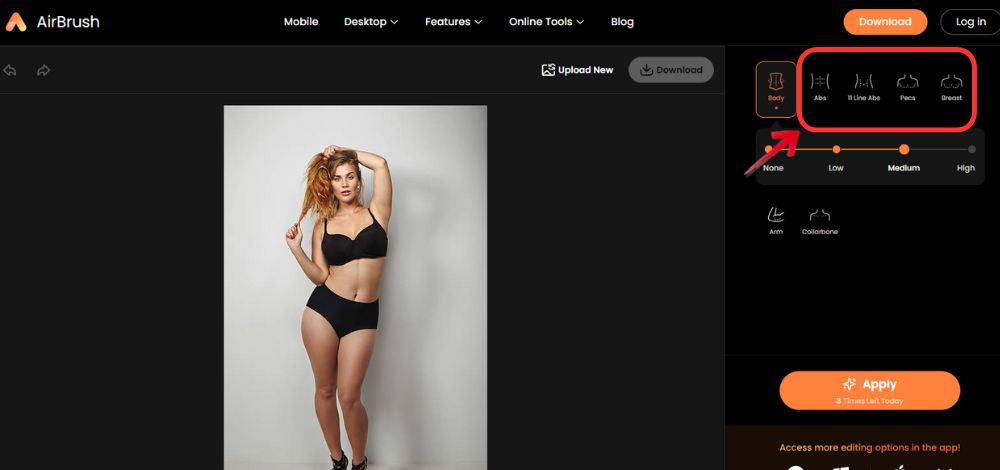
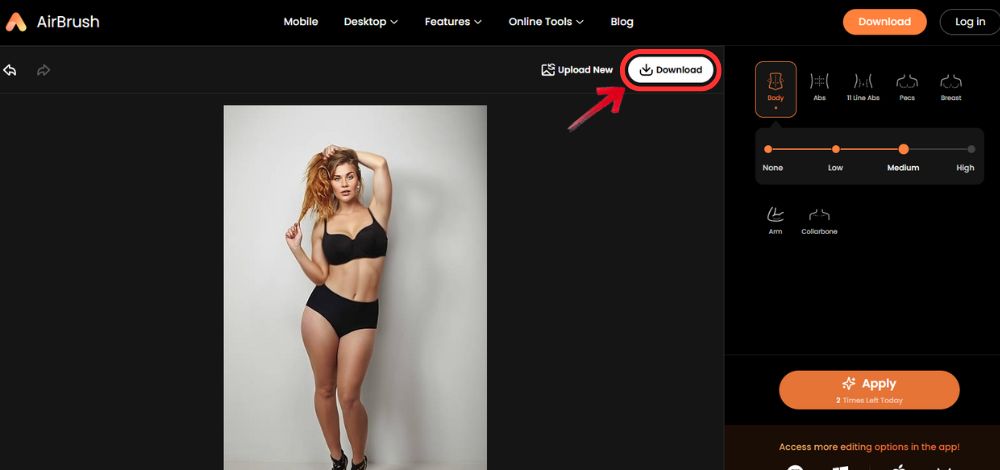
6. Now save the image to your device by clicking the “Download” button at the top right of the page.
Airbrush Studio
You can even use the desktop version of Airbrush on your Mac or PC, giving you a full editing workspace with professional-grade results. Everything is supported by AI, so the adjustments stay simple, fast, and easy to manage, even if you’re not used to heavy editing tools. It also helps explain why do I look fat in pictures, since the desktop tools reveal how small distortions from lenses, angles, and lighting can shift proportions and make features appear wider than they are in real life.
1. Download and install Airbrush Studio on your computer and open it. Next, click “Upload Image” to upload your photo.
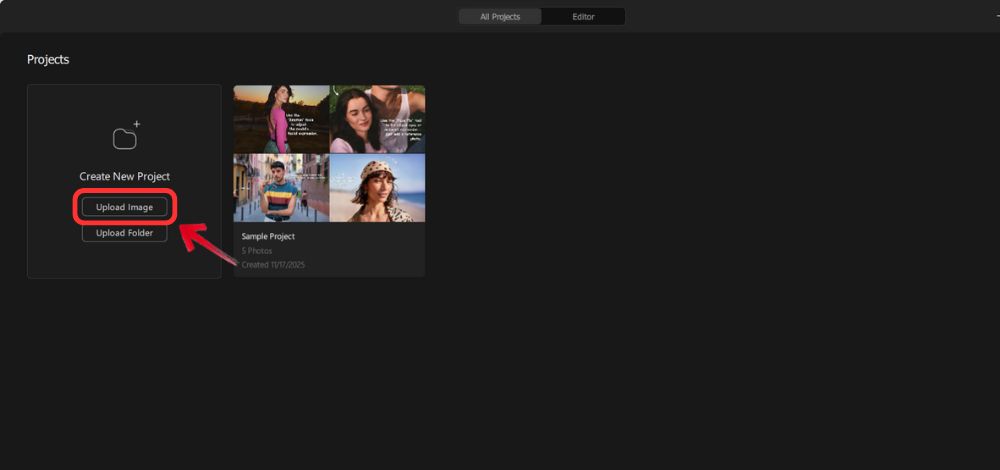
2. On the right side, click on the panel “Liquify and Reshape”.
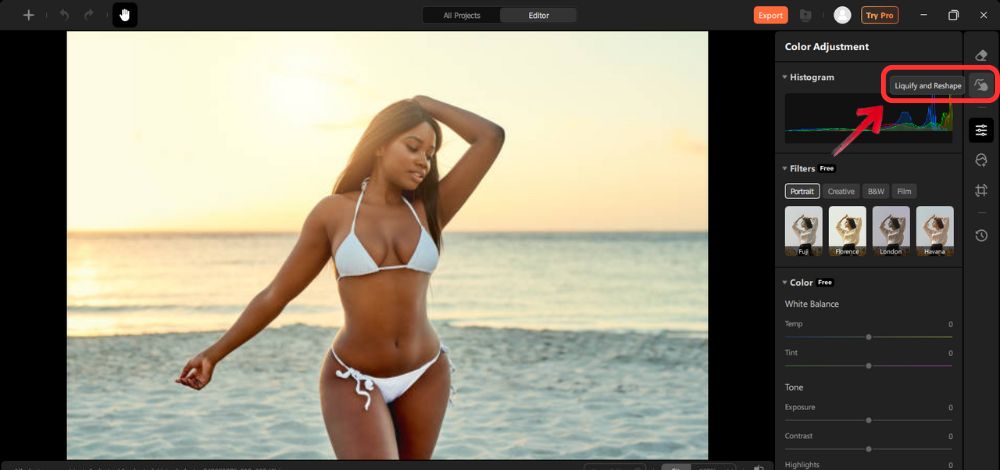
3. To have manual control over your image, tap the liquify options and brush over specific parts like the waist, arms, or jawline.
4. Use Reshape for more targeted adjustments like arms, waist, shoulders, or legs. You can adjust intensity sliders for natural-looking results.
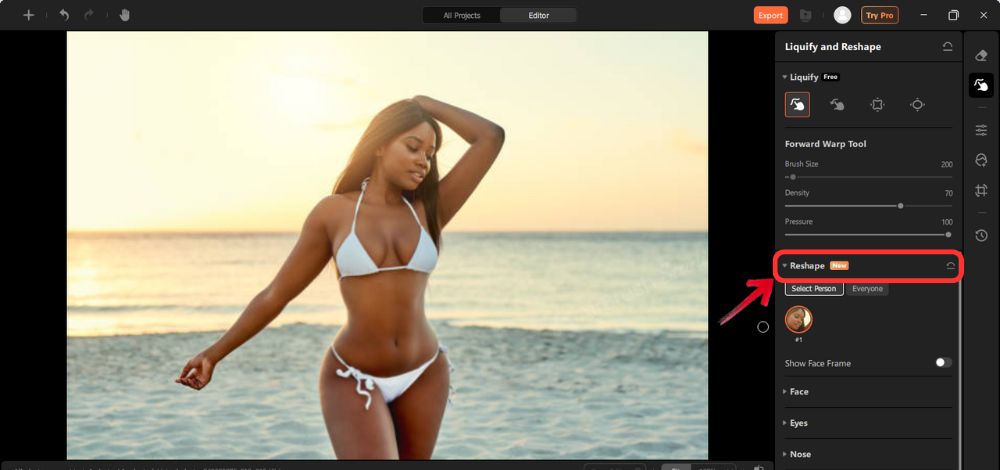
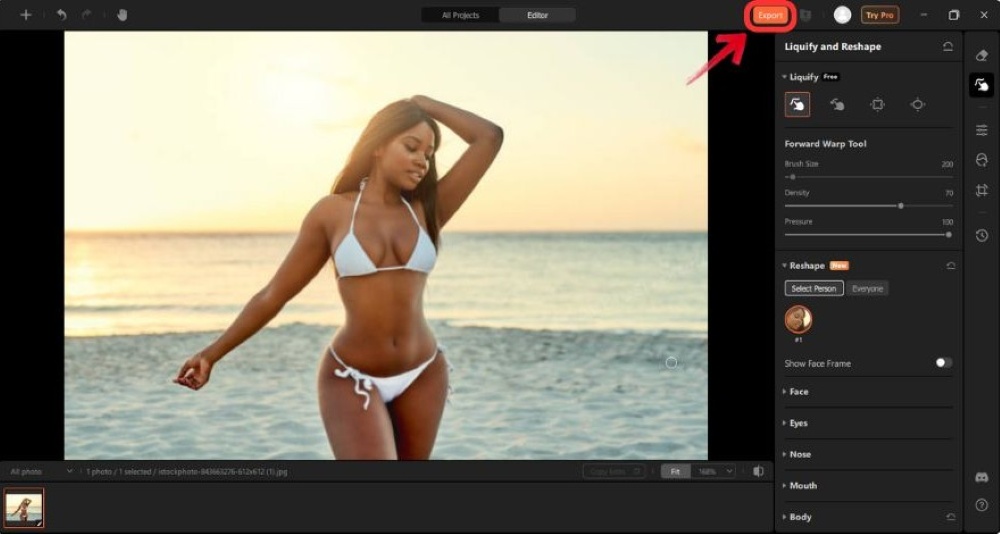
5. Export the finished photo in high resolution by clicking on the “Export” button at the top right.
Airbrush App
If you prefer doing your edits directly on your phone, you can simply download the Airbrush app and start working on your photos right there.
1. Open the Airbrush app on your phone and upload the photo you want to adjust.
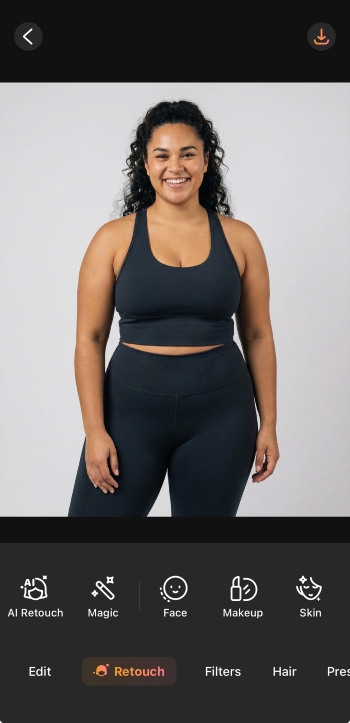
2. Select the “Retouch” option from the edit tab and scroll to find the option ”Body”.
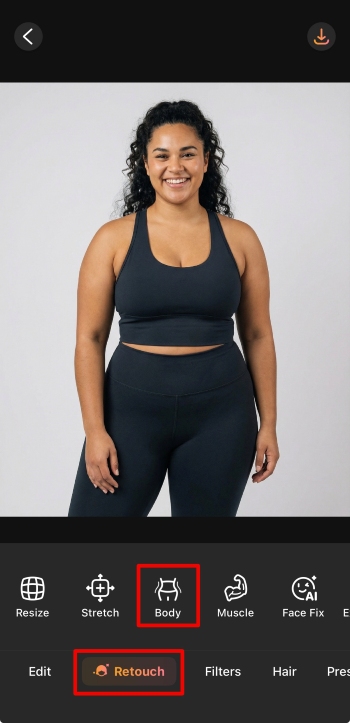
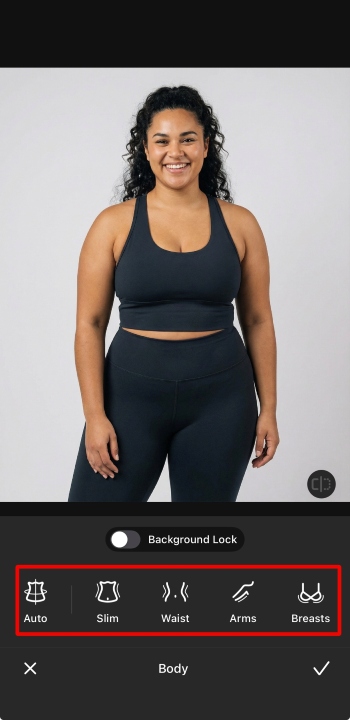
3. Choose between the areas you want to edit, like Waist, Arms, Breasts, etc, and adjust the slider until the results look natural to you
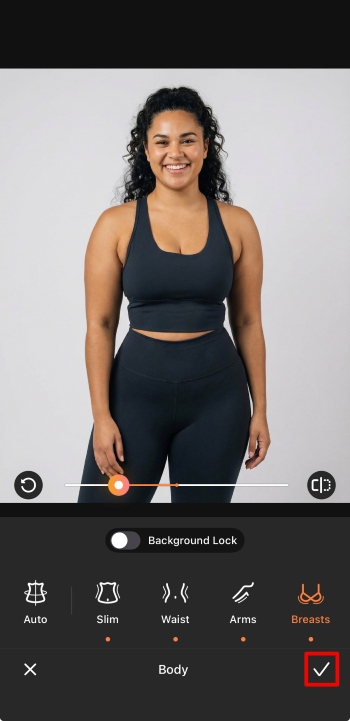
4. Tap on the“tick” icon to the bottom right, and tap “Save” to download the image to your device.
Conclusion
After you’re done making your adjustments, the difference feels surprisingly refreshing. Your photo looks more like the real you instead of the version distorted by a camera lens or bad lighting, which can easily make you think, “Why do I look fat in pictures?” And if you ever want to tone things up a little further, Airbrush makes the entire process simple. Between its online body editor, muscle generator, and mobile app, it gives you fast, natural-looking results without any complicated steps.