A long look in the mirror can make you wonder what you would look like with slightly different features, and how that might affect your overall facial harmony. If your nose were a little different, for example, would it change your face for the better or the worse? It is hard to say, because our imagination is often biased.
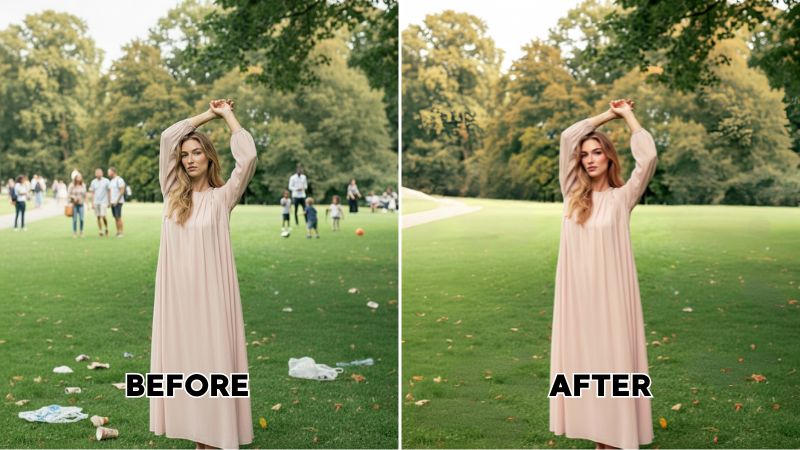
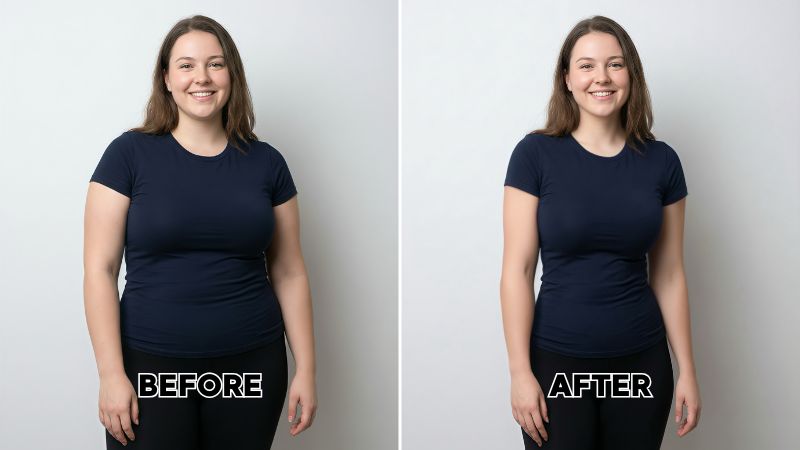
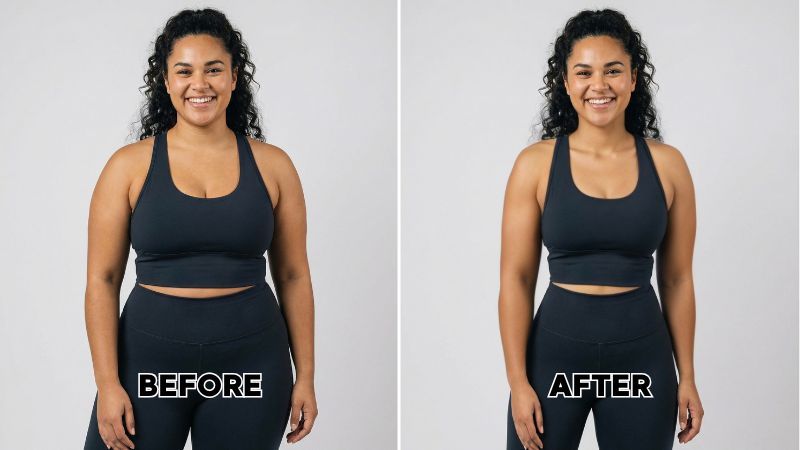
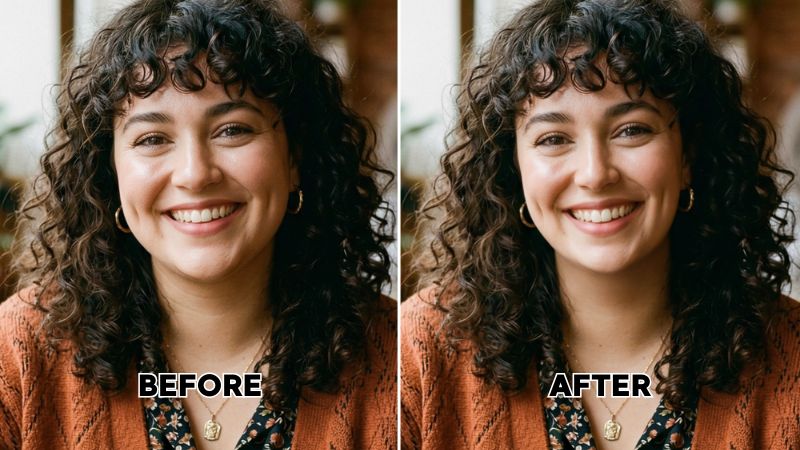
What is less biased today are face reshape app. These face editing apps can adjust your features realistically and show you how subtle or dramatic changes might look. They can help you visualize possible results before considering braces, cosmetic procedures, or even small enhancements like fillers. This way, you get a clearer preview of what those changes could actually look like.


The best face reshape app in 2026
1. Airbrush Studio

Airbrush has been at the top of the game in face editing app for PC for many reasons. It has a section fully dedicated to face retouching, where the app automatically detects facial structure and applies adjustments smoothly. Instead of forcing changes onto the image, it works with your natural proportions, which makes the results look balanced.
I personally found it fascinating how, no matter how drastic the changes were, they still looked natural. Usually, when using traditional liquify tools, the corners of the image shift or distort slightly, and that becomes very noticeable. Airbrush takes care of those details in a way that keeps everything aligned, so even stronger edits do not come off as warped or artificial.
The app includes automated face retouch options that range from a natural finish to a softer, more youthful look. These presets allow you to enhance features without manually adjusting every detail. There is also a Face Fix feature, which can correct expressions or even regenerate closed eyes while still keeping your original look intact.
Beyond that, you can adjust skin texture, tone, teeth, hair, and eyes, and even edit multiple people in the same frame at once. For users who prefer more control, the liquify and reshape tools allow manual adjustments to the face and body. You can refine the jawline, nose, or eyes with subtle tweaks or more defined edits, depending on the result you want, while still maintaining a realistic overall appearance.
Platforms: Windows and macOS
Pricing: Airbrush Studio Pro starts at $12.95 per month or $129.95 per year, with a free plan available.
Pros
- AI-guided portrait tools make editing fast and easy
- Automatic face detection for retouching and reshaping
- Smooth, natural results even with dramatic changes
- Good balance between automated adjustments and control
Cons
- Not as powerful as professional editors like Photoshop
- Features limited to portrait/beauty edits
Suitable users:
Best for social media creators, beauty editors, influencers, and anyone who wants fast, natural-looking face edits without a steep learning curve.
2. Adobe Photoshop

Adobe Photoshop has long been considered the standard when it comes to professional photo editing, and that includes facial reshaping. Once you download it, the interface, although now integrated with AI features, still feels very familiar. Most of us have opened Photoshop at some point, experimented with a few tools, and then given up when it started to feel overwhelming.
The layout has stayed consistent over the years, with panels, layers, and toolbars that follow the same structure many users recognize. The difference now is that AI features are integrated directly into the workflow. Tools like Neural Filters and Face-Aware Liquify make adjustments more guided than they used to be, but the overall environment still requires some understanding of layers and manual controls.
Photoshop offers precise reshaping through the Liquify filter, where you can manually adjust facial features or use face-aware sliders to modify the eyes, nose, lips, and jawline. However, unlike mobile apps that automate most changes, Photoshop gives you full control. That control can be powerful, but it also means edits depend heavily on the user’s skill.
Platforms: Windows and macOS
Pricing: Adobe Photoshop costs $22.99 per month.
Pros
- Industry-standard photo editing software
- Full manual control over every aspect of an image
- Face-Aware Liquify and Neural Filters offer powerful reshaping
- Works with layers, masks, and advanced tools for professional results
Cons
- Steep learning curve
- Subscription cost can be high for casual users
Suitable users:
Best for professional photographers, graphic designers, magazine editors, and advanced content creators who need full manual control and precision.
3. Luminar Neo
Luminar Neo takes a more automated approach compared to traditional editing software. It is designed to simplify complex edits, especially when it comes to portraits.
Inside the Portrait section, you’ll find dedicated tools for facial adjustments. Under the Face settings, you can adjust features like slimming, reshaping, and refining proportions using simple sliders. There is no need to manually push or pull areas the way you would with liquify tools. The software analyzes the face and applies changes in a structured way.
Because the adjustments are AI-driven, the results can be quite noticeable while still maintaining overall balance. The edits tend to blend smoothly into the image, which reduces obvious distortions or warped edges. This makes it easier for users to achieve polished results without advanced editing skills.
Luminar Neo is built for those who want efficiency. Instead of spending time manually controlling every detail, you select the adjustment you want, move the slider, and let the software handle the technical side of reshaping.
Platforms: Windows and macOS
Pricing: Luminar Neo starts at $79 as a one-time payment.
Pros
- Strong AI tools that automate complex edits
- Portrait tools make reshaping and retouching easy
- User-friendly interface compared to professional editors
- Stylish results without deep technical knowledge
Cons
- Not as powerful for detailed manual edits
- Some features require additional modules or subscription
- Less flexible than Photoshop for fine control
Suitable users:
Best for photographers, portrait editors, and creatives who want strong AI tools with minimal manual effort but still want some control.
4. GIMP

GIMP is free and open source, available across Linux, Windows, and macOS. Its full form is GNU Image Manipulation Program, and despite being free, it offers surprisingly advanced tools that can cater to beginners and experienced editors alike.
That said, the interface can feel overwhelming at first. It has its own unique layout, combined with a structure that may remind some users of older versions of Photoshop. It is not the kind of software most people can use comfortably right away. Even if you are familiar with older Photoshop versions, you may still need time to adjust to the icons, panel placement, and tool behavior.
When it comes to face reshaping, GIMP does not have automatic face detection like AI-based apps. Everything is manual, which means results depend entirely on how carefully you edit.
Platforms: Windows, Linux and macOS
Pricing: GIMP is completely free.
Pros
- Completely free and open source
- Powerful manual editing features
- Customizable with plugins
- Works on Windows, macOS, Linux
Cons
- No native AI face reshaping tools
- Manual edits can be difficult and time-consuming
- Interface feels outdated for some users
Suitable users:
Best for budget-conscious users, open-source supporters, hobbyists, and advanced users willing to learn manual editing techniques.
5. PhotoDirector

PhotoDirector leans heavily on generative AI to create and adjust images based on what you want. That means less manual editing and more prompt-based or slider-based adjustments. The effort required is relatively low, while the results can look polished and high-quality.
It markets itself as a beauty-focused editing tool, aimed at people who regularly post on social media or edit portraits that need quick corrections. It is also useful for magazine-style edits where models may need small refinements here and there without spending hours on manual adjustments.
Since we are focusing specifically on photo reshaping, PhotoDirector offers AI-powered tools that allow you to modify facial features with simple controls. Instead of manually pushing pixels like in traditional liquify tools, you adjust sliders for slimming, refining facial structure, enhancing eyes, or softening features. The software analyzes the image and applies the changes in a way that keeps proportions balanced.
Because it relies on AI, reshaping tends to look smooth and consistent, especially for subtle corrections. It is designed for speed and convenience, making it suitable for users who want clean, social-media-ready edits without dealing with complex professional software.
Platforms: Windows and macOS
Pricing: PhotoDirector starts at $39.99 per year or $99.99 as a one-time purchase.
Pros
- Good mix of AI enhancements and manual editing tools
- One-time purchase option available
- Targeted at portrait beauty edits (skin, face reshaping, etc.)
- Easy to learn
Cons
- Not as robust as Photoshop or Lightroom
- UI can feel less polished compared to premium tools
Suitable users:
Best for content creators, lifestyle editors, and users who want AI-powered beauty tools with some manual control at a more affordable price.
6. FaceApp’d

FaceApp’d does not require downloading if you use its browser-based version, and it starts at around $99.99 per year for the premium plan. It is another tool that relies heavily on AI and offers a wide range of features designed to deliver professional-looking results with almost no learning curve.
When it comes to face reshaping, it can handle nearly everything automatically. You can change your smile, smoothen skin, slim down facial features, adjust jawlines, refine noses, enhance eyes, and more, all through simple taps or sliders. The software analyzes facial structure and applies edits in a way that keeps proportions aligned.
Because it is AI-driven, most adjustments are quick and require minimal manual control. It is built for users who want fast, polished results without spending time learning complex editing techniques.
Platforms: Web browser version, iOS, and Android
Pricing: Starts at $99.99 per year.
Pros
- Strong AI-based face editing with minimal effort
- Can adjust expressions, age, smiles, and facial features
- Results look polished and realistic
- Works well through a browser without installing heavy software
Cons
- Not a full image editor, focused on faces only
- Subscription cost for premium features
- Limited control over fine details
Suitable users:
Best for casual users, influencers, and anyone who wants quick AI-based face transformations like smile changes, slimming, or expression edits.
How to Reshape Face on Airbrush Studio
Yes. Many face and body editing apps use AI processing, which may require uploading your photos to cloud servers. This means your images could be temporarily stored or analyzed depending on the app’s privacy policy. Before using any app, review its data practices, limit unnecessary permissions, and avoid uploading sensitive personal images.
1. Go to the official Airbrush website and download Airbrush Studio for your Mac or Windows device. Launch it once the installation is complete.
2. Click on Open or Import and select the image you want to edit.
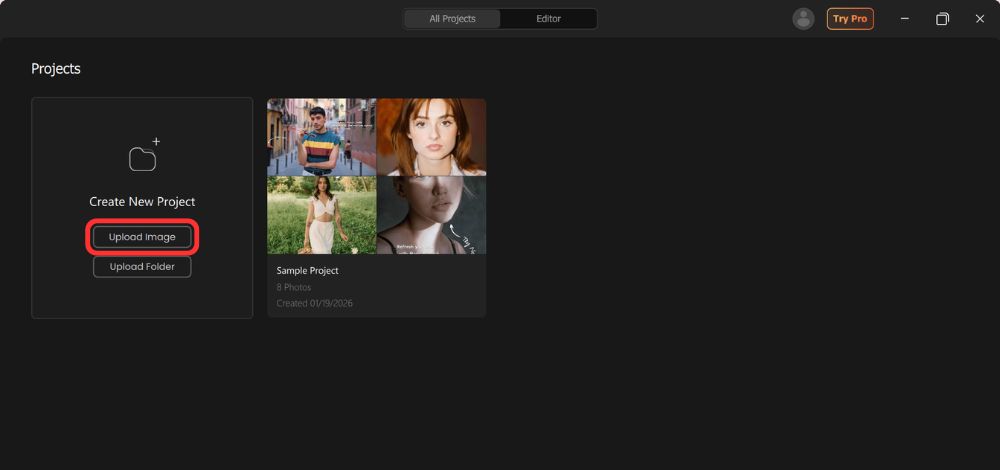
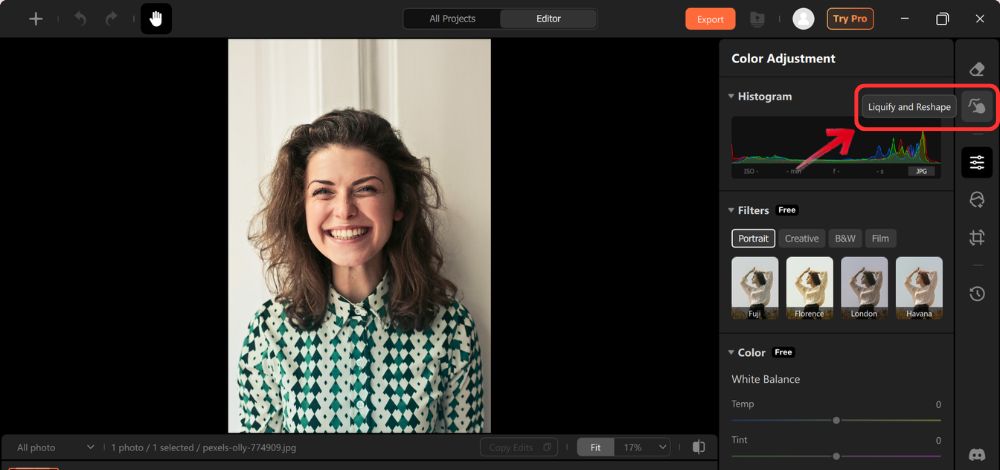
3. From the main editing panel, go to the Liquify or Retouch section. If there are multiple people in the image, make sure the correct person is selected before you begin editing.
4. Before making changes, adjust the brush controls:
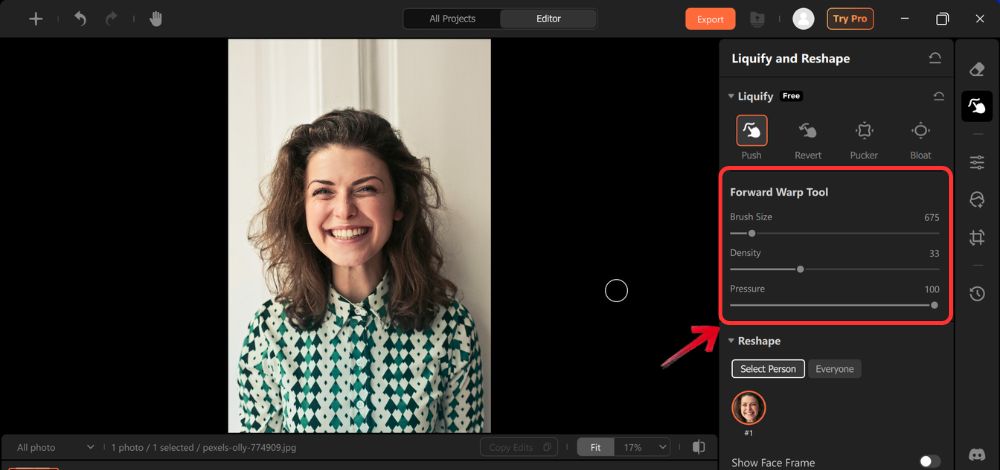
Brush Size: Increase for larger areas like jawline or cheeks. Decrease for detailed areas like nose or lips.
Pressure: Lower pressure for subtle edits. Higher pressure for stronger reshaping.
Rate: Controls how quickly the effect builds up as you drag. Start low for more natural results.
Always begin with lower intensity settings to avoid over-editing.
5. Use the Push Tool. The Push tool is used to gently move areas inward or outward.
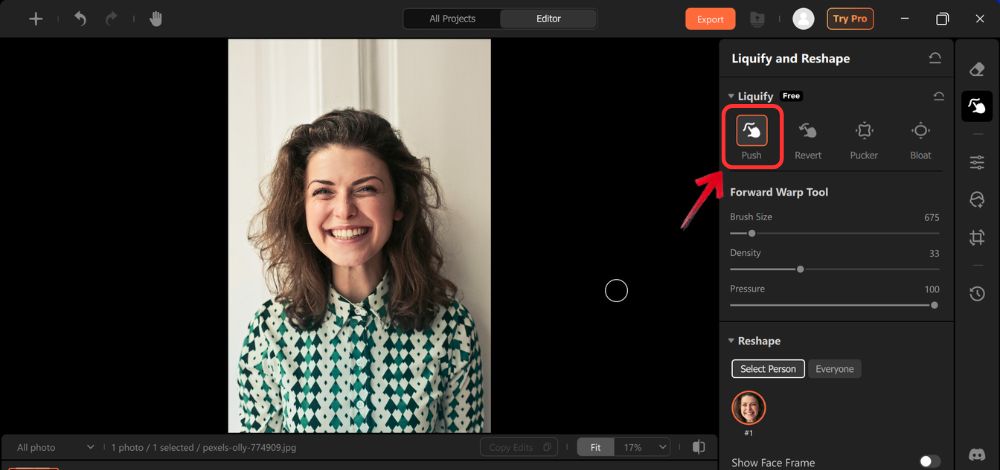
To slim the face, gently push the outer jawline slightly inward.
To refine cheekbones, softly push upward along the cheek area.
Use small strokes instead of dragging across large sections at once.
6. Use the Revert Tool. If an area looks unnatural or overdone, select the Revert tool.
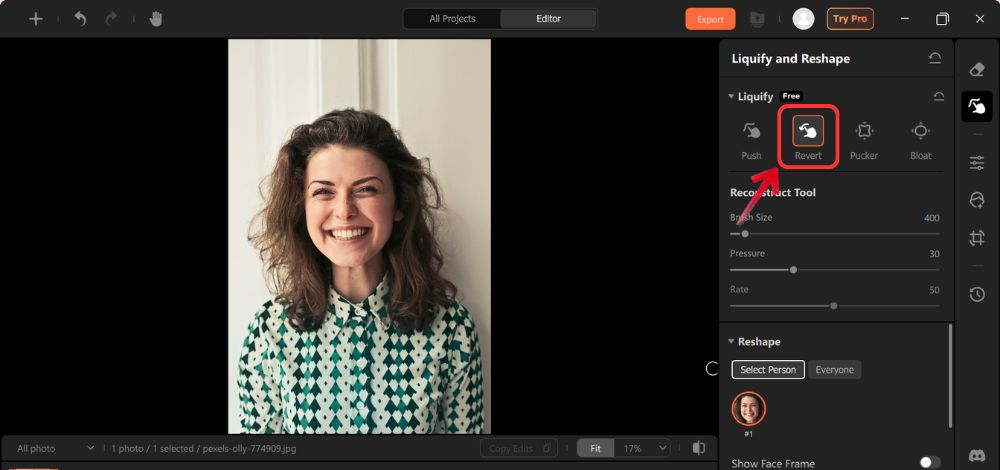
Lightly brush over the area you want to restore.
This helps bring back the original shape without restarting the entire edit.
Use it frequently to maintain balance.
7. Use the Pucker Tool. The Pucker tool shrinks specific areas.
Apply it gently to slim the nose.
Use it around the jawline for a more contoured look.
Keep the brush small for facial details.
Avoid holding the brush in one place for too long to prevent distortion.
8. Use the Bloat Tool. The Bloat tool slightly enlarges areas.
Subtly enhance lips by tapping once or twice.
Slightly enlarge eyes for a more open look.
Use sparingly to maintain realism.
9. Zoom Out and Review. After editing, zoom out and view the full image.
Check for:
Warped edges
Uneven proportions
Distorted background lines
Make small corrections where necessary.
10. Save Your Final Image. Once satisfied, click Save or Export.
FAQ
What are the best apps for body and face editing on smartphones?
If natural-looking results are the priority, Airbrush is often the top choice because its AI reshaping tools adjust facial and body features smoothly without obvious distortion. Other strong options include FaceApp for AI-based facial transformations, Facetune for more detailed manual retouching, and YouCam Perfect for quick beauty edits. All of these are available on iOS and Android.
Are there any privacy concerns when using body and face editing apps?
Yes. Many face and body editing apps use AI processing, which may require uploading your photos to cloud servers. This means your images could be temporarily stored or analyzed depending on the app’s privacy policy. Before using any app, review its data practices, limit unnecessary permissions, and avoid uploading sensitive personal images.
Conclusion
All tools are equally apt to help you reshape and refine your features, but the right choice depends on how much control, automation, and realism you are looking for. Some platforms focus on manual precision, while others rely heavily on AI to deliver fast, polished results. What matters most is using these tools thoughtfully and keeping edits balanced so your natural features still feel like you.