So many of us look good in real life. When it comes to pictures, the story is completely different. The weird pictures make us lose confidence. We start questioning “Why do I look ugly in pictures.” When there is no answer, most of us just start avoiding cameras.
However, this is not the solution. Having no memories of a beautiful day will make you regret it one day. This article mentions some common reasons of ugly pictures and their practical fixes. Are you ready to shift your “Why do I look ugly in pictures” to “how to enhance your appearance”?
Why do I look Ugly in Pictures?
Your photographs may not look like the vision you had in mind. There can be different reasons of the common “Why do I look ugly in pictures” question. These include:
- Lighting Problems: Too much light or no light, both can make you look ugly. Harsh lighting can cast shadows. On the other hand, taking pictures in the dark can make you look dull.
- Lens Distortion: The camera lens distortion alters your features. The features closer to the lens appear bigger while the farther ones look smaller. That is why your nose looks more highlighted in pictures than real.
- Unfavorable Angles: Sometimes, the cameraman may be the problem. Pictures taken from awkward angles can highlight your insecurities. For instance, your double chin becomes visible when a picture is taken from a low angle.
- Awkward Poses: If your expressions are forced or you are smiling awkwardly, it will make the picture look unnatural.
- Camera Flash: Camera flash is not always necessary while taking pictures. Sometimes, the flash makes your skin look greasy. It also makes the eyes appear red or weirdly bright.
The Hidden Factor: Your Face Shape and Proportions
The issue of “Why do I look ugly in pictures” stems from the mismatch between your unique facial symmetry and how the camera captures it. The right direction can make you look beautiful in your pictures. However, one pose, camera angle, and lighting may not be fit for everyone.
Everyone has unique features. The directions that may work for one person may not give the same results for the other. Therefore, in order to find the pose and angles that complement your features, you must know your face shape. For example,
- For oval faces, almost every camera angle can work. A slight chin tilt can make you look more confident.
- For round faces, a straight-on shot can make it look big. By turning the head slightly to a 3/4th view, you can make your face look slim.
- For Square faces, a 2/3 view of the face can highlight your cheekbones without overemphasizing the jaw. Soft lighting with a camera at eye-level gives you the perfect shot.
- For heart-shaped faces, a slightly low camera angle is best. It balances the appearance of a wide forehead and narrow chin.
- For oblong faces, avoid high camera angles. It makes your face appear longer. Go for a low camera angle with a slight head tilt.
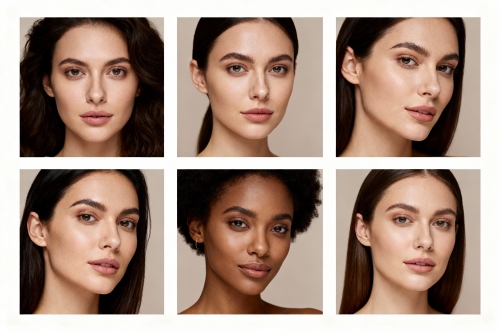
Try a Face Shape Detector for the Perfect Photos
Finding the solution to “Why do I look ugly on camera?” Minor adjustments in camera angle and posing can make your pictures look attractive. It all depends upon your face shape and proportions. Are you confused about your face shape? Cannot tell the difference between a heart and diamond face shape?
A face shape detecting tool like Airbrush Face Shape Detector can help analyze your features and identify your face shape. It is an online free tool which uses advanced AI to analyze your facial structure thoroughly. By identifying your face shape with this tool, you can:
- Find the camera angle that flatters your features without highlighting your insecurities.
- Decide different poses that look natural.
- Adjust the lighting and distance from the camera that makes your face look neither too big nor too small.
- Above all, you can add final retouches precisely while editing without relying on hit and trial.
How to Use Airbrush Face Shape Detector?
Here is a step-by-step guide on how to use the Airbrush face shape detector:
- Open the online Airbrush Face Shape Detector.
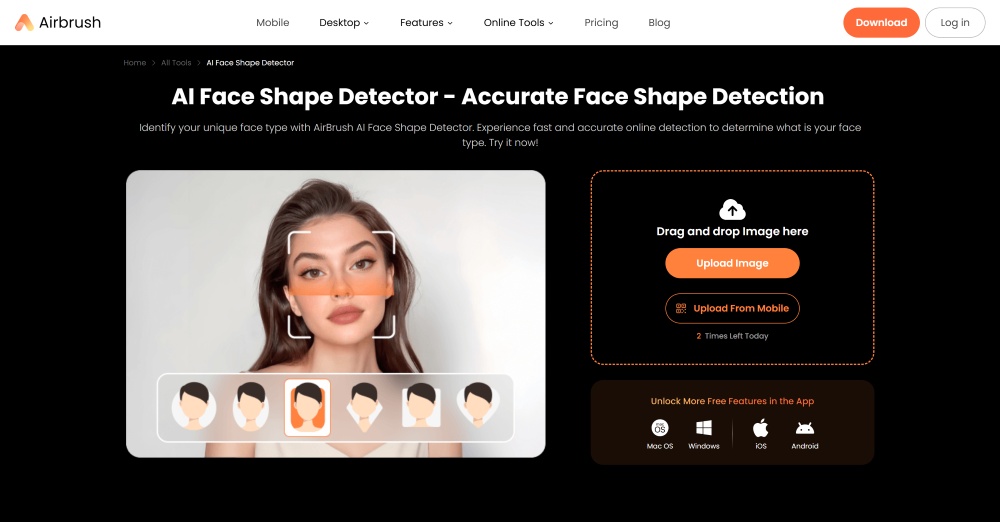
- Click on “Upload image” to provide a picture. It must show your face clearly.
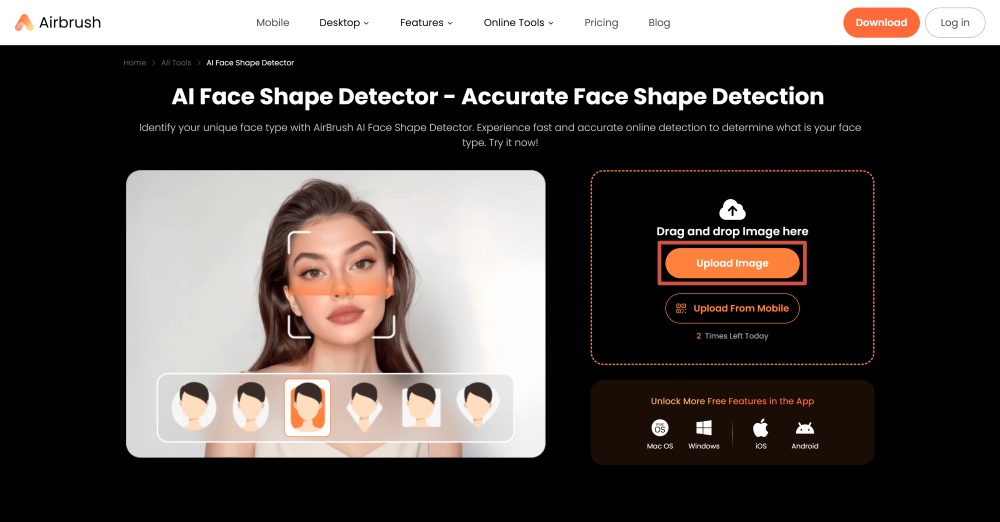
- It will automatically analyze the image and give you results within seconds.
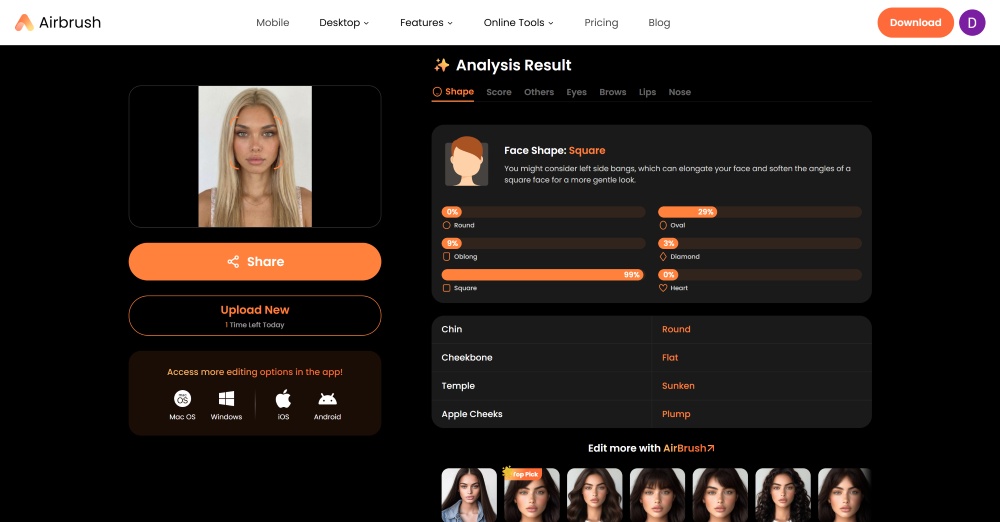
Try Pretty Scale Tool to Gain Your Confidence Back
The next step in solving the puzzle “why am i so ugly in pictures” is styling. The right hairstyle and makeup that complements your face shape makes you look good both in real and in pictures. The Airbrush Pretty Scale can give you a precise analysis. After scanning your facial features, it provides styling tips.
It saves your trips to stylists and the hefty sum you spend on each visit. It is an online free tool that is easily accessible for everyone. Why use it? Here are its benefits:
- After a detailed analysis, it highlights your strengths.
- Eliminates the need to ask for opinions from everyone. The more the opinions are, the more is the confusion.
- Build confidence by getting rid of the question “Why do I look ugly in pictures” from your mind.
- Saves you from the anxiety of going for a random look last minute. Timely recommendations ensure you look poised at every event.
How to Use Airbrush Pretty Scale Tool
To use Airbrush Pretty Scale tool:
- Go to the official site of Airbrush Pretty Scale.
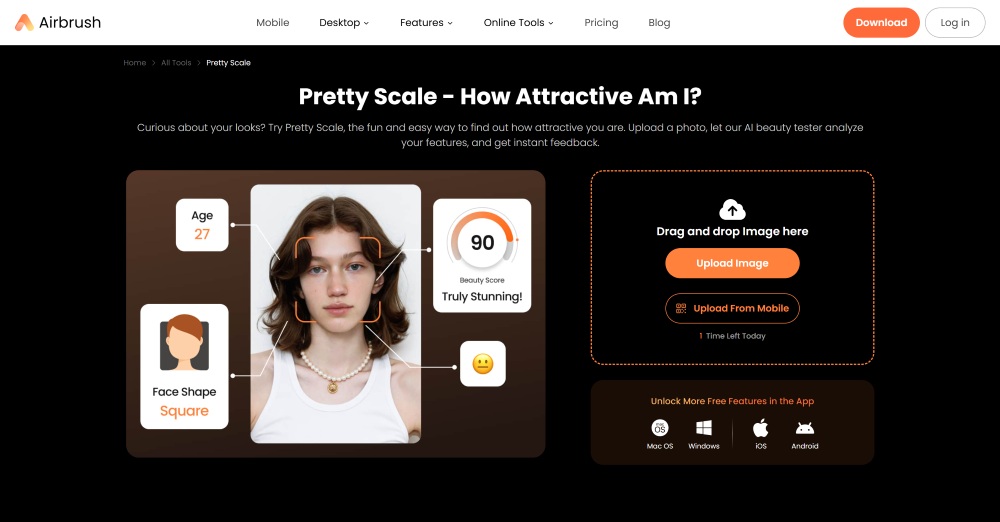
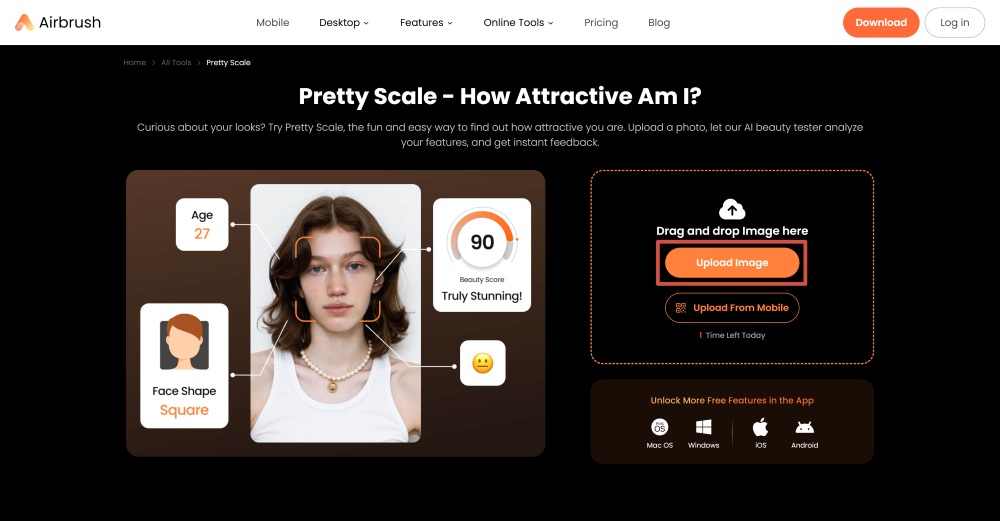
- Tap on “Upload Image.”
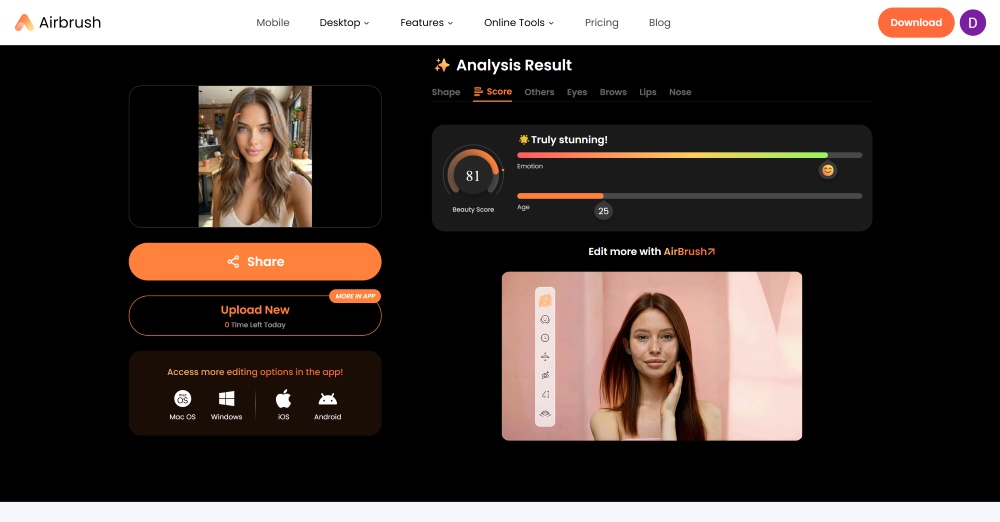
- The analysis will be ready within seconds.
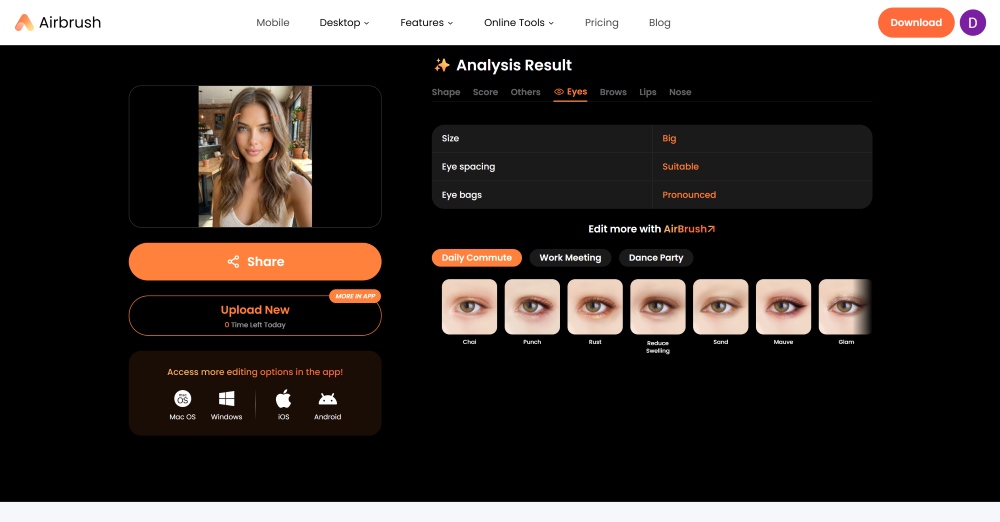
- There are separate options for each feature. Click on them one by one for more detailed styling tips.
How to Edit Photos for a Better Look
Even after flawless styling and posing, pictures need some final touches to look stunning. You can use the Airbrush app to achieve the perfect results. It is an all-in-one suite with extensive editing features. From makeup to face retouch and hairstyling, the tool has everything you need.
Here is a guide on its main face editing features and how to use them.
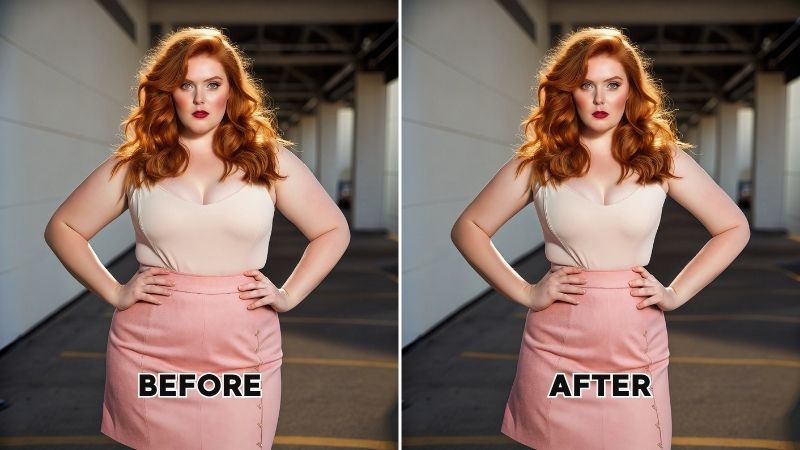
- Face Retouch: Allows you to resize your face and tilt your head. You can also use it to refine your cheekbones and jawline. Moreover, you can adjust each feature like nose, lips, and eyes individually.
- All you need to do is upload your photo, click on retouch, and tap “Face.” Now use the slider to adjust each feature one by one.
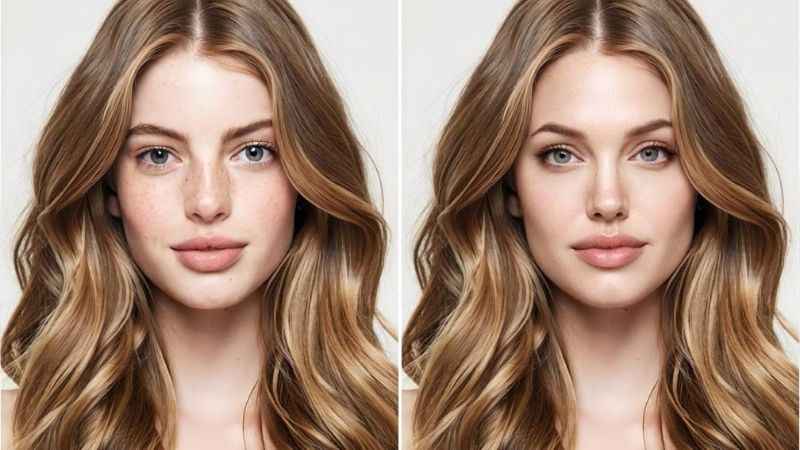
- Makeup: Allows you to choose from different makeup looks. Options include natural, festive, popular, and much more.
- Provide your photo, finalize the makeup, and adjust the opacity with a slider.
- Skin: You can use it to smoothen your skin, brighten it, or remove acne. It can help you get rid of dark circles and wrinkles as well.
- Click on the “Skin” option and choose an option for enhancement. You can go for the “auto” option or select your own brush color and size for customization.
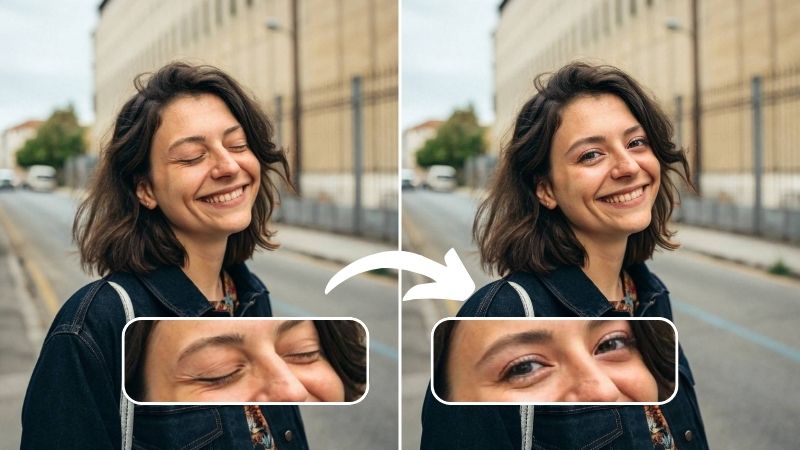
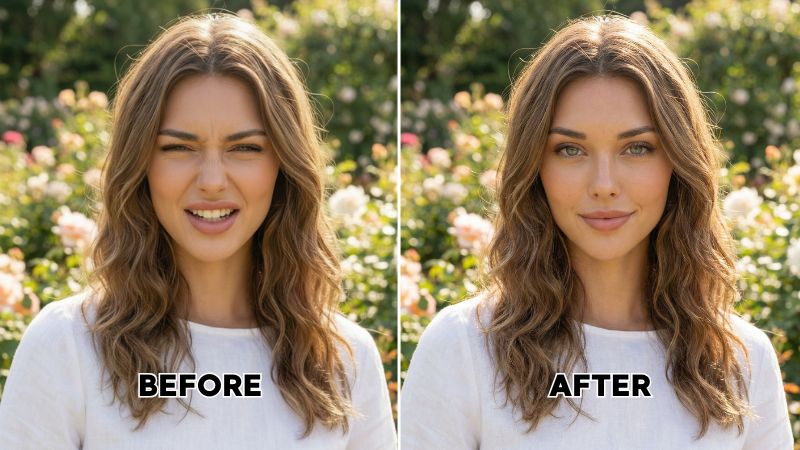
- Face Fix and Expressions: If you do not like your expressions in a photo, just change them.
- Choose “Expressions” and select one from grin, poker face, or smile. You can also use “Face fix” and provide a reference photo if you want a specific expression.
Conclusion
Sometimes, the problem is not in your appearance but in how a picture is taken. The answer to “Why do I look ugly in pictures” lies in your face shape and final editing. To get the perfect photos, it is best to analyze your proportions and face shape first. By knowing these, you will be able to sort out the lighting, poses, and angles that flatter your look.